
AI video editor
From raw recording to finished video.
Upload what you filmed and say what you want. Davnai cuts the mistakes, opens on your strongest line and adds captions, B-roll, graphics and music. You check every change before it's made.
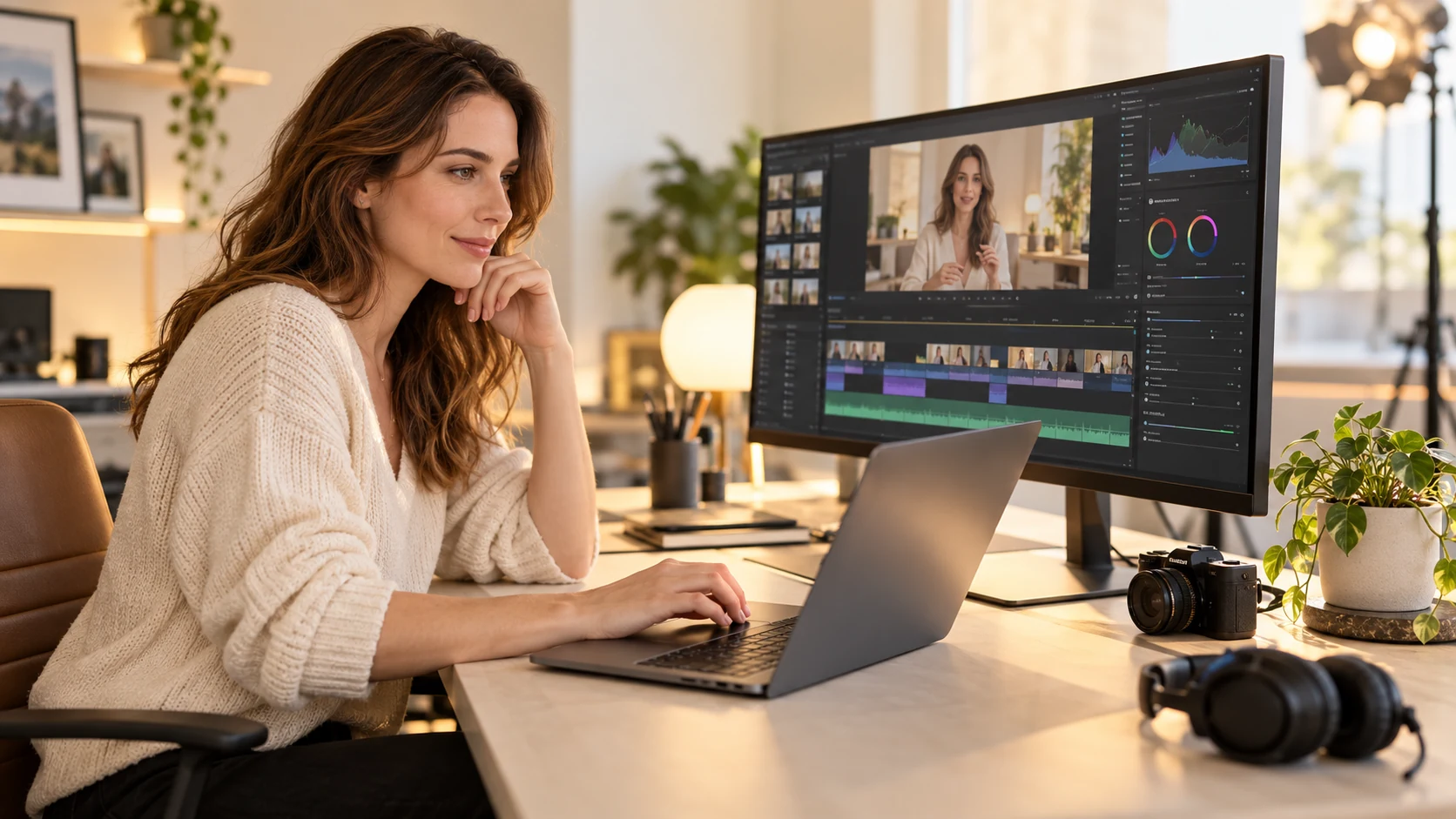 AI edit ready to check
01 · Finished edit
A finished edit you can check
Davnai reads every word you said, takes out retakes, repeats and long pauses, then adds B-roll, graphics, music and captions in the style you pick. Nothing is final until you've watched it.
- Open AI Edit and add a recording, or several to join.
- Pick what you're making (Shorts, a YouTube video, a tutorial…) and say anything the AI should know.
- Press Start AI edit, then watch your video, change anything and Export.
 AI edit ready to check
02 · Stronger opening
An opening that keeps people watching
The first seconds decide whether people stay. Davnai starts on the line that pulls viewers in, or on the hook you choose yourself, and keeps the rest of the story in order.
- Leave the opening to Davnai: it starts on the line that pulls people in.
- Or, in the full editor, select your words and choose Make this the hook.
- Change it in Make changes → Opening line before you export.
Opening
The line that pulls viewers in goes first.
03 · Davnai Agent
Change it by asking
Say what you want in plain words: “make it tighter”, “keep the joke”, “add captions”. Davnai Agent sits on every page and does the work: it edits, trims, makes Shorts, posts and plans, and shows you an Approve button before anything goes out.
- Open Davnai Agent at the bottom right of any page, or Make changes on your finished video.
- Say what you'd like changed.
- Check the change, then approve or undo it.
04 · In Claude and ChatGPT
Davnai inside Claude and ChatGPT
Add Davnai as a connector to Claude, ChatGPT or any AI app that takes MCP connectors. Ask from that chat for your videos, calendar, automations and results, or for new posts, automations and videos. Anything that posts, sends or switches on waits for your OK.
- Open Settings → Connected apps in Davnai.
- Add Davnai in your AI app and press Allow.
- Ask from your AI app's chat; disconnect any time.

 Your AI app
3 Shorts are ready. Schedule them Tue, Thu and Sat at 6 pm?
Waits for your OKEditing by hand, or with Davnai
The same finished video, without the hours.
| What you need | By hand | With Davnai |
|---|---|---|
| Finding mistakes and pauses | Scrub the whole timeline | Found from what you said |
| A strong opening | Guess, cut and re-cut | Suggested, or the hook you pick |
| B-roll, graphics and music | Search, place and time each one | Added where they fit |
| Captions | Type or fix every line | Written and timed for you |
| Changes | Back into the timeline | Ask in plain words, or edit by hand |
Questions
More in the help centre.
Do I lose control of my edit?
No. Davnai suggests and builds the edit; you watch it, change anything in the editor or by asking, and nothing is exported until you choose to.
Can I still edit by hand?
Yes. Open the full editor on any AI edit to cut, move, add and remove anything yourself, with the words and the timeline.
Does it work with several recordings?
Yes. Choose several recordings, put them in order, and AI Edit joins them into one story.
What if nobody speaks in my video?
AI Edit still edits it, by picture and music instead of words, so product shots, dance clips and music videos work too.
Does it use my plan's minutes?
Your recording counts toward video minutes once, when you upload it. Each finished video counts its length toward export minutes; AI suggestions don't count.
Goes well with
Try it on your next video.
Start free. Your originals always stay as they are.