
Look and sound
Studio quality, filmed at home.
A softer background, better light, a cleaner voice and music that steps aside when you talk. Davnai does it after you record, so you never set up a studio.
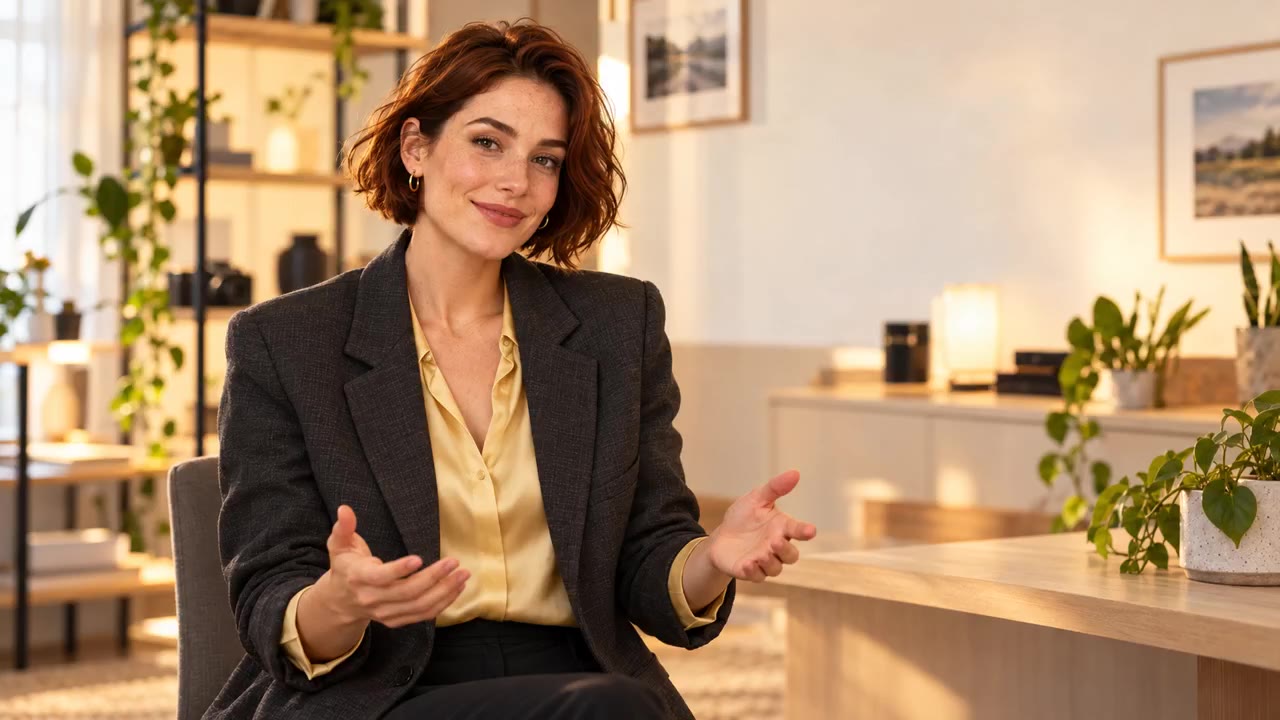
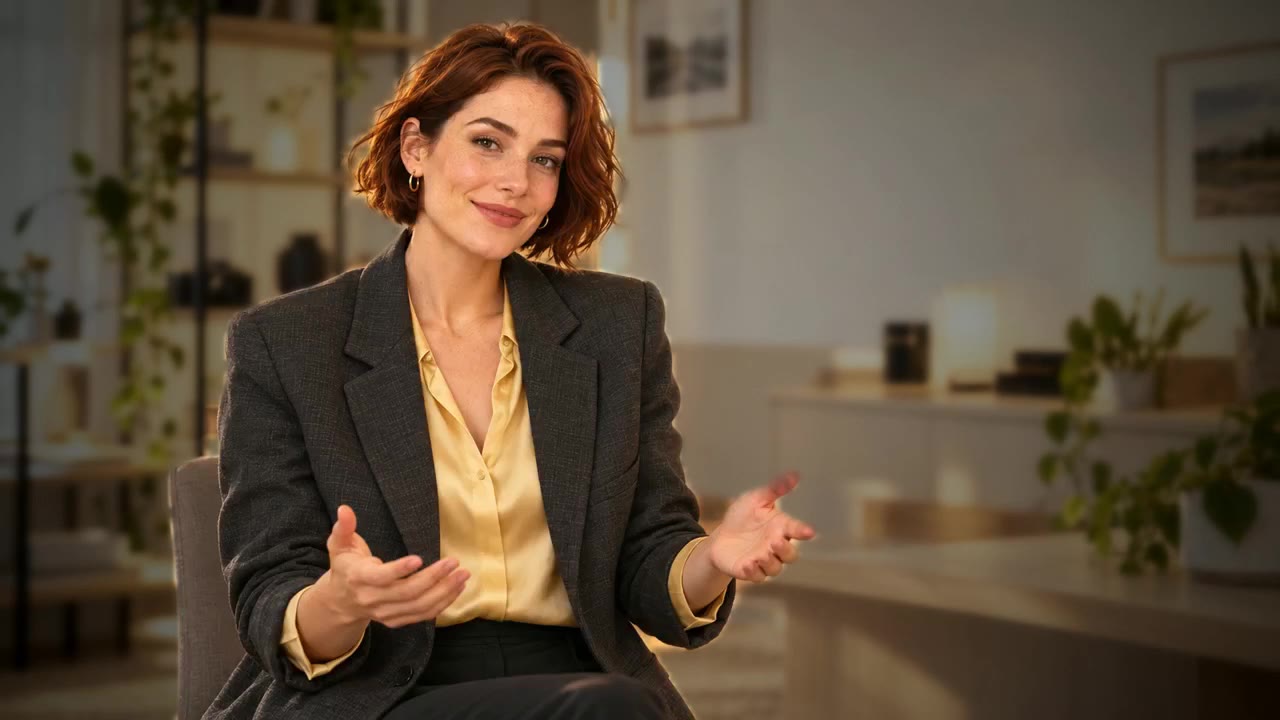
01 · Studio look
A background that looks like a studio
You stay exactly as you were filmed. Only what's behind you changes: a soft camera blur, calmer light on the room, or a tidier, better-lit version of your own room.
- Open your video in Edit & Tools → Studio look, or turn on Improve my room in AI Edit.
- Pick Soft focus, Portrait lighting or Improve my room.
- Press Make it. Your original stays as it is.
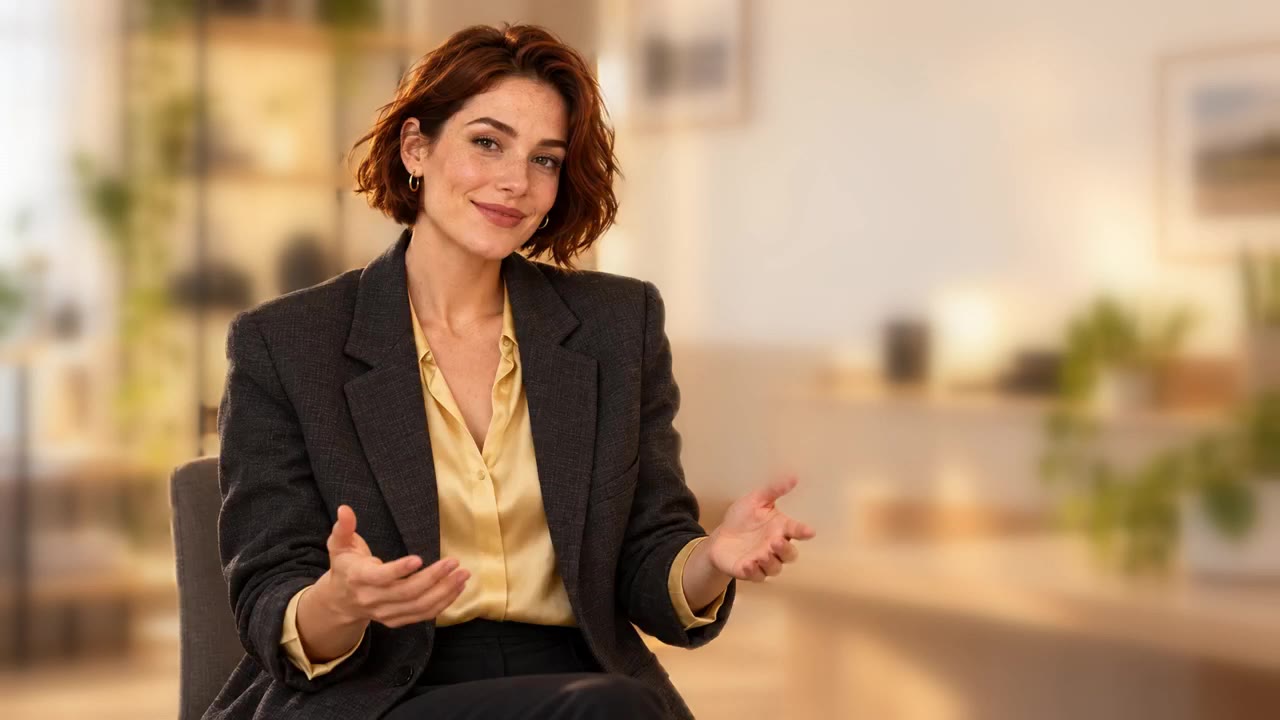 Portrait lighting
02 · Clean up sound
Your voice, without the room
Echo, hum, traffic and keyboard clicks are taken out and your voice is evened out, so people hear what you say, not where you said it.
- Open Edit & Tools → Clean up sound, or leave it on in AI Edit (it's on by default).
- For a noisy or echoey room, turn on Stronger voice clean-up.
- Make the video. Your original stays as it is.
03 · Colour and looks
The light and colour of a pro shoot
Auto-fix lighting lifts dark footage and adds a little colour. Then pick a look, from Natural to Cinematic, and steady a shaky camera.
- Open Edit & Tools → Look and colour.
- Turn on Auto-fix lighting, then choose a look.
- Add Steady a shaky camera if you filmed handheld.
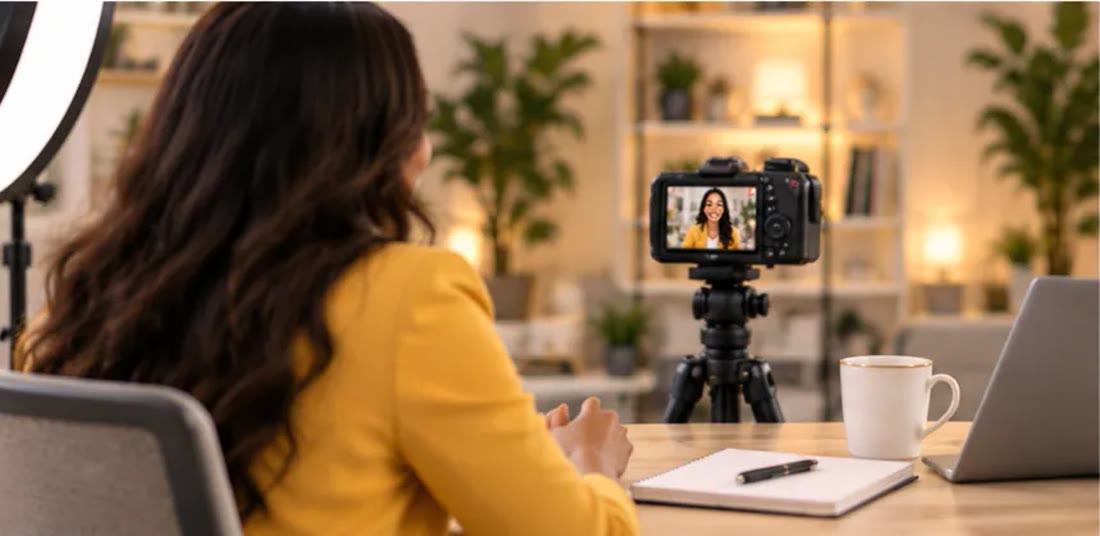
04 · Background music
Music that steps aside when you speak
Pick a free-to-use track from the Davnai library or upload your own. It gets quieter under every sentence and rises again in the pauses, so your words always come through.
- Open Edit & Tools → Music, or leave Music on in AI Edit.
- Choose a track from the library, or upload one you own.
- Set the volume. The music lowers by itself while you speak.
Studio gear, or Davnai
What it takes to get the same result.
| What you need | A home studio | Davnai |
|---|---|---|
| Soft background | Fast lens, space behind you | Soft focus, after recording |
| Flattering light | Key light, fill light, setup time | Portrait lighting and Auto-fix lighting |
| Tidy room | Rearrange and dress the set | Improve my room |
| Clean voice | Treated room, good microphone | Clean up sound |
| Music under voice | Manual volume edits | Lowers by itself while you speak |
| Change your mind | Film again | Pick another look; the original stays |
Questions
More in the help centre.
Will it change how I look?
No. Studio look only changes what's behind you. Lighting and looks brighten and balance the whole picture.
What does Improve my room need?
A camera that stands still, like a phone on a stand. Davnai checks your video first; if the camera moves, it uses Portrait lighting instead and says so on the finished video.
Does it work on long videos?
Background changes work on up to 10 minutes of a video. Sound clean-up, looks and music work on the whole video.
Can I undo it?
Yes. Davnai makes a new copy and never changes your original recording. Pick a different look and make it again.
Does it use my plan's minutes?
Making the video counts toward your export minutes, like any edit. Improve my room also uses one AI image.
Goes well with
Try it on your next video.
Start free. Your originals always stay as they are.